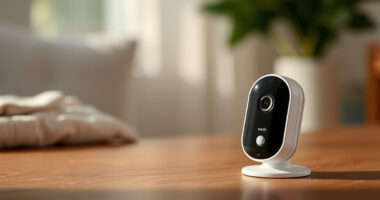
Set up your Wi-Fi baby monitor so you can view its live video stream on a phone or tablet. This guide is for caregivers who can use a mobile app and connect a device to home Wi-Fi; no networking experience is needed. Allow 20–40 minutes for setup and testing. You will finish with a working stream, a secure account, and the camera placed safely for monitoring.

Turn the school run and nap time into listening time
- Thousands of audiobooks, podcasts and originals
- Listen on your phone, tablet or Echo — also offline
- Cancel anytime

VTech VM901 Smart Wi-Fi Baby Monitor with 1080p Camera, 5-Inch Screen, Pan-Tilt-Zoom, Night Vision, and Two-Way Talk
- ✔ Camera resolution: 1080p
- ✔ Parent unit screen: 5-inch HD
- ✔ Camera control: Pan, tilt, and zoom up to 10x

Blemil 5.5-Inch Smart Wi-Fi Baby Monitor with Camera and Audio
- ✔ Display: 5.5-inch IPS
- ✔ Video resolution: 1296p and 720p
- ✔ Camera movement: 285° pan, 60° tilt, and automatic motion tracking

1080P WiFi Baby Monitor with 4-Inch Screen, PTZ Camera, and App Control
- ✔ Screen size: 4 inches
- ✔ Video resolution: 720p video; 1080p display support
- ✔ Connectivity: 2.4GHz Wi-Fi and FHSS
Difficulty: Beginner | Time: 20–40 minutes
What You’ll Need
Tools & Materials:
- Wi-Fi baby monitor camera and its power adapter
- Phone or tablet with the manufacturer’s app installed
- Home Wi-Fi network name and password
- A stable shelf or the manufacturer’s mounting hardware
Knowledge:
- Basic use of a smartphone or tablet
- How to join a Wi-Fi network on your device
Check the monitor’s manual for supported Wi-Fi bands, app requirements, and placement instructions. Many cameras require a 2.4 GHz Wi-Fi network during setup. Keep the camera, cables, and mounting hardware out of the baby’s reach. A monitor supplements caregiver supervision; it does not prevent or detect every hazard.
VTech VM901 Smart Wi-Fi Baby Monitor with 1080p Camera, 5-Inch Screen, Pan-Tilt-Zoom, Night Vision, and Two-Way Talk
The VTech VM901 is our best overall choice because it gives Wi-Fi streaming a useful partner: a five-inch parent unit with a direct camera connection. Caregivers can check the nursery through the MyVTech Baby app when away from the monitor, or use the dedicated screen at home. Its 1080p camera and pan-tilt-zoom controls make the viewing setup more flexible than the 1080P WiFi model’s listed 720p video, while the Blemil’s higher stated 1296p option comes with automatic tracking and a larger screen instead.Movement and temperature alerts add context when a caregiver cannot keep watching the screen, and two-way talk lets them respond through the monitor. Those features make the VM901 a strong fit for households that want both remote access and an at-home display without making tracking its defining feature. App viewing requires an internet connection, so streaming is tied to the availability of your home internet. The stated parent-unit range of up to 1,000 feet may also be limiting in a large or obstructed home; the figure is not a guarantee for every layout. Choose this model for a balanced feature set, and look to Blemil if a longer stated ECO battery runtime or automatic movement tracking matters more.
Pros:
- Combines a five-inch parent unit with remote viewing through the MyVTech Baby app.
- 1080p camera video with pan, tilt, and up to 10x zoom.
- Two-way talk, movement alerts, and nursery temperature alerts.
- Supports shared app access for multiple caregivers.
Cons:
- Remote app viewing requires an internet connection.
- The stated parent-unit range is up to 1,000 feet and can be limiting in larger homes.
Best for: Caregivers who want app-based Wi-Fi viewing and a 1080p camera alongside a separate five-inch parent screen.
Not ideal for: Households that need remote app viewing without an internet connection, or want automatic movement tracking and a particularly long stated ECO-mode battery life.
Bottom line: For a balanced Wi-Fi monitor with a strong camera specification and a dedicated screen, the VM901 is our most versatile starting point.
“For a balanced Wi-Fi monitor with a strong camera specification and a dedicated screen, the VM901 is our most versatile starting point.”
Blemil 5.5-Inch Smart Wi-Fi Baby Monitor with Camera and Audio
Blemil is the choice for buyers who want the camera to follow movement and a larger screen for local viewing. Its 5.5-inch IPS display is the biggest listed here, edging past the VTech’s five-inch unit and the other monitor’s four-inch screen. The camera offers 285° pan and 60° tilt, with automatic motion tracking, so it can follow activity without requiring caregivers to continually adjust its position. That gives it a distinct role in this lineup: the VTech offers 10x zoom, while Blemil prioritizes tracking.The parent-unit battery is rated for up to 22 hours in ECO mode, which may suit caregivers who want fewer charging interruptions; actual runtime depends on use and settings. The monitor supports app viewing, two-way audio, and sound, cry, and motion detection. Micro-SD and encrypted cloud storage are also listed, giving buyers storage choices beyond live streaming. We would check the details of cloud service and card compatibility before relying on either feature, since the supplied description does not specify service terms or included storage.Blemil’s main limits are connection and installation. Its Wi-Fi supports 2.4GHz only, and the camera itself needs corded power, so placement depends on a nearby outlet. Compared with the VM901, it offers more tracking and a larger display, but the VTech specifies a 1080p camera and a 10x zoom feature. We would choose Blemil when tracking and the stated ECO-mode runtime lead the decision, rather than assuming its higher listed resolution alone guarantees a better view.
Pros:
- Large 5.5-inch IPS parent-unit display with smartphone app viewing.
- Camera provides pan, tilt, and automatic motion tracking.
- Parent unit is rated for up to 22 hours in ECO mode.
- Supports two-way audio and Micro-SD or encrypted cloud storage.
Cons:
- Wi-Fi pairing supports only 2.4GHz networks.
- Camera requires corded electric power.
Best for: Families who want automatic movement tracking, a larger parent screen, and a long stated ECO-mode runtime.
Not ideal for: Buyers whose router uses only 5GHz Wi-Fi, or who need a camera that can be placed without access to corded power.
Bottom line: Blemil stands out when automatic tracking and a large screen matter more than the VTech’s stated 1080p camera and zoom specification.
“Blemil stands out when automatic tracking and a large screen matter more than the VTech’s stated 1080p camera and zoom specification.”
1080P WiFi Baby Monitor with 4-Inch Screen, PTZ Camera, and App Control
This monitor earns its place for households that want two ways to keep watch at once. It combines smartphone app control over 2.4GHz Wi-Fi with a local FHSS connection to the four-inch parent display. That setup can be useful when one caregiver wants the app while another watches the dedicated unit. VTech also offers an app and parent unit, but this model is the only one here whose supplied description explicitly names FHSS alongside Wi-Fi; buyers should confirm how that mode works for their needs.The camera’s 340° pan and tilt provides the widest stated horizontal movement among these options, exceeding Blemil’s 285° pan and 60° tilt. It also includes no-glow night vision, two-way audio, cry detection, and temperature-change alerts. The parent unit is rated for up to 14 hours of battery life, a useful stated figure, although shorter than Blemil’s ECO-mode claim. Its compact four-inch screen is easier to accommodate than Blemil’s larger display, but gives less viewing area.There are meaningful caveats. Despite “1080P” in the product title, the listed video resolution is 720p, with 1080p display support; we would not interpret display support as 1080p camera capture. Wi-Fi is limited to 2.4GHz, and the camera stand is not included, so buyers may need to plan mounting separately. Compared with the VM901, it trades a larger screen and specified 1080p camera for explicit FHSS plus app monitoring and broader stated pan coverage. It makes most sense when those connection options are the priority.
Pros:
- Smartphone app and dedicated parent unit can be used for monitoring.
- Lists both 2.4GHz Wi-Fi and a local FHSS connection.
- 340° pan-and-tilt coverage, no-glow night vision, and two-way audio.
- Cry detection and temperature-change alerts are included.
Cons:
- Listed video resolution is 720p, despite the title’s 1080P wording.
- Wi-Fi supports 2.4GHz only.
- Camera stand is not included.
Best for: Caregivers who value simultaneous app viewing and a local FHSS parent-unit connection with extensive camera movement.
Not ideal for: Buyers who need confirmed 1080p camera capture, 5GHz Wi-Fi support, or a camera stand included in the package.
Bottom line: Choose this model for its combination of local FHSS and app monitoring, while keeping its listed 720p camera resolution and stand omission in view.
“Choose this model for its combination of local FHSS and app monitoring, while keeping its listed 720p camera resolution and stand omission in view.”
As an Amazon Associate we earn from qualifying purchases.
Before You Start
Choose a location with a clear view of the sleep area and a strong Wi-Fi signal. Follow the monitor and crib manufacturers’ placement guidance, and keep the camera, cords, and power adapter well away from the baby and the crib. Do not place a camera or cord inside the crib. If you are mounting the camera, use the supplied hardware and follow the instructions for your wall type. Keep the Wi-Fi password available, but do not share it in an unsecured message.
Step-by-Step Instructions
Step 1: Prepare your phone and network
Connect your phone or tablet to the home Wi-Fi network you plan to use for the camera. Check that the network has internet access, then install the monitor maker’s official app from your device’s app store. Confirm that the app and your device’s operating system meet the requirements in the manual. Allow requested permissions that the app needs for setup, such as Bluetooth or local network access.
Tip: If your router combines 2.4 GHz and 5 GHz bands under one network name, check the manual for setup guidance. Some monitors need the phone to join the 2.4 GHz band during pairing.
Check: The app opens, and your phone shows it is connected to the intended Wi-Fi network.
Step 2: Create and secure your account
Open the app and create an account using your email address or the sign-in method the manufacturer supports. Choose a unique password that you do not use for other accounts. Turn on two-step verification in the app’s account or security settings if it is available. Confirm your email or phone number if the app asks you to do so.
Tip: Use the manufacturer’s official app and website. Avoid sharing account credentials with anyone who only needs occasional access; use the app’s guest or family-sharing feature instead.
Check: You can sign in to the app, and its account settings show two-step verification enabled if supported.
Step 3: Power on the camera
Place the camera temporarily near the router, on a stable surface, and connect it using the supplied power adapter. Follow the manual to turn it on or enter pairing mode. Wait for the status light or voice prompt that indicates setup mode. If the camera was previously configured, use the manual’s reset procedure before pairing it with your account.
Tip: Do not use an unapproved adapter or an extension cord routed near the crib. Keep the camera in a location where the cord cannot be pulled into the sleep area.
Check: The camera’s indicator or app prompt confirms that it is powered on and ready to pair.
Step 4: Add the camera in the app
In the app, select the option to add or set up a device, then choose the correct monitor model. Follow the on-screen pairing steps. The app may ask you to scan a code on the camera, connect to its temporary setup network, or display a QR code for the camera to scan. Grant only the permissions needed to complete these steps, and keep the phone close to the camera during pairing.
Tip: A QR code may need to be held steady at the distance shown on screen, with adequate light and no glare. Do not photograph or share a setup code that could grant access to the device.
Check: The app identifies the camera and proceeds to the Wi-Fi selection screen or finishes adding the device.
Step 5: Connect the camera to Wi-Fi
Select your home network in the app and enter its password carefully. Check for capitalization and similar characters, then submit the details. Keep the camera within reliable router range while it joins the network. Wait for the app to report completion; do not unplug the camera during this process. If prompted, give the camera a clear name so you can distinguish it from other devices.
Tip: If the network does not appear, check the monitor’s supported bands and your router settings. Do not enter your Wi-Fi password into a third-party page or an unverified app.
Check: The app shows the camera as connected or online without a pairing error.
Step 6: Place and mount the camera safely
Unplug the camera if the manual calls for it during relocation. Move it to the chosen position, then mount or set it up according to the manufacturer’s instructions. Aim the lens toward the sleep area while keeping the device and all cords outside the crib and beyond the baby’s reach. Secure any exposed cord so it cannot hang into the crib or be pulled by a child. Keep the camera stable and away from heat, moisture, and direct bright light.
Tip: Check the view from the app after positioning. A wide angle can show the full sleep surface without requiring the camera to be close to the crib.
Check: The sleep area is visible, the camera is stable, and no camera part or cord can be reached from the crib.
Step 7: Test the live stream and alerts
Open the camera’s live view in the app and leave it running for several minutes. Check the image in the room’s usual lighting, listen for audio if your model supports it, and test night vision in a dim room if that feature is available. Review notification, sound, and motion settings; enable only the alerts you want to receive. Lock your phone, reopen the app, and confirm that you can sign back in and view the stream.
Tip: Test alerts while the baby is not relying on the monitor. Notification delivery depends on phone settings, app permissions, and internet access.
Check: The stream loads reliably, the camera view is clear enough to check the sleep area, and selected alerts arrive on your device.
Step 8: Review sharing and account access
Open the app’s device-sharing or family settings and review who can view the camera. Remove any unfamiliar or outdated accounts. Invite trusted caregivers through the app’s individual access controls, if available, rather than sharing your main password. Review the manufacturer’s privacy and update settings, and install available camera or app updates through official channels.
Tip: Repeat the access review when caregivers change or when you stop using a shared device.
Check: Only people you trust appear in the camera’s access list, and the app shows no pending update that you intend to install.
Common Mistakes to Avoid
- Entering the Wi-Fi password incorrectly or choosing an unsupported network band. — Copy the network name carefully, check capitalization in the password, and confirm the monitor’s supported bands in its manual before pairing.
- Placing the camera or its cord within the baby’s reach. — Follow the camera and crib instructions, keep the device outside the crib, and secure cords so they cannot hang into or be pulled toward the sleep area.
- Sharing the main account password with every caregiver. — Use individual app invitations or guest access, and remove accounts when access is no longer needed.
- Assuming the monitor is working without checking the stream and alerts. — Test live video, audio, night vision, and notifications from the phone and location you expect to use.
Troubleshooting
Problem: The app cannot find the camera during pairing.
Solution: Confirm that the camera is powered on and in pairing mode. Move the phone closer, allow local network or Bluetooth access if requested, and restart setup. If the camera was used before, follow the manual’s reset steps and try again.
Problem: The camera rejects the Wi-Fi password or will not connect.
Solution: Re-enter the password and verify the network band and security settings supported by the monitor. Move the camera near the router for setup, restart the router if other devices also have connection problems, then retry pairing.
Problem: The live view freezes, buffers, or disconnects.
Solution: Check whether the phone and camera have internet access. Move the camera closer to the router or reduce obstacles between them. Close unused streaming apps and retry. If the issue continues, restart the camera and consult the maker’s connection guidance.
Problem: Notifications do not appear on the phone.
Solution: Check notification permissions for the monitor app in both the app and the phone’s settings. Review quiet modes, battery restrictions, and alert thresholds. Trigger a test alert while monitoring the app; delivery may pause when the phone has no internet access.
What Success Looks Like
The camera appears online in the official app, and its live view shows the intended sleep area with a stable image. Audio and night vision work if your model includes them, and any chosen alerts reach your phone during a test. The camera and cables remain outside the crib and beyond the baby’s reach. Account access is limited to trusted users, with two-step verification enabled when available.
Next Steps
Check the camera’s position and live stream whenever you change the sleep space, move the router, or update the app. Review shared users and install official updates periodically. If the monitor loses connection, use the troubleshooting steps before relying on alerts again. Continue following safe sleep guidance and supervise the baby directly; treat the monitor as an added viewing aid, not a substitute for care.
Frequently Asked Questions
Does a Wi-Fi baby monitor work without internet?
It depends on the model. Some monitors provide local viewing on the same Wi-Fi network, while remote viewing and notifications usually need an internet connection. Check the manual, then test the features you plan to use before relying on them.
Can I view the camera when I am away from home?
Many Wi-Fi monitors support remote viewing when both the camera’s network and your phone have internet access. Sign in through the official app and test the live stream on a separate network, such as mobile data, before you need remote access.
Why does setup ask for 2.4 GHz Wi-Fi?
Some cameras support 2.4 GHz Wi-Fi for setup or operation, while others support additional bands. Follow the model’s instructions and use the router’s supported network options. If your bands share one name and pairing fails, check the router or monitor maker’s guidance for separating them during setup.
Can more than one caregiver watch the stream?
Often, yes. Use the app’s family or guest-sharing controls if the model provides them. Give access only to trusted caregivers, and remove it when it is no longer needed instead of sharing the primary account password.
Is Wi-Fi video monitoring a replacement for checking on the baby?
No. A monitor can help you view or hear the sleep area, but it cannot prevent every hazard or replace direct care. Follow safe sleep guidance and check on the baby in person as needed.